Claude Code MCP Setup Guide: Optimizing AI Coding Agents

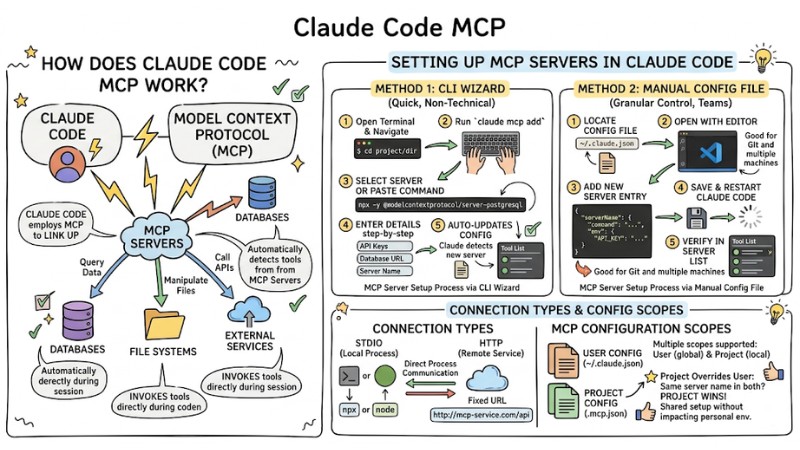
Claude Code MCP is how Claude Code utilizes the Model Context Protocol to connect directly to databases, file systems, and external services via MCP servers. This article guides you through configuring Claude Code MCP from basics to practical application, covering server setup, config file editing, and verifying functionality right in your workspace.
Key Takeaways
- MCP Concept: Understand that the Model Context Protocol is a connection standard acting as a bridge to help Claude Code communicate directly with databases, file systems, and external services without modifying core source code.
- Mechanism: Grasp how Claude Code auto-detects and invokes tools from an MCP Server, allowing you to seamlessly query data or call APIs mid-session.
- Setup Guide: Learn how to install an MCP Server via 2 methods: Using the CLI wizard and manual configuration via a JSON file.
- JSON File Structure: Master the syntax of the
.claude.jsonfile with critical fields likecommand,args, andenv. - Testing and Error Handling: Pocket the workflow for managing Server status with the
/mcpcommand and basic troubleshooting steps when a config crashes. - Practical Applications: Explore the power of popular MCP Servers like Playwright, Postgres, Filesystem, and GitHub.
- FAQs: Get answers to questions regarding MCP Server resource consumption, project-specific configurations, and data transmission safety.
What is the Model Context Protocol?
The Model Context Protocol (MCP) is an open standard used to connect AI applications with external data and tools. In the context of Claude Code, MCP acts as a bridging layer between the model and local data sources or tools, enabling connections to databases, search engines, or web browsers without tweaking the core source code.
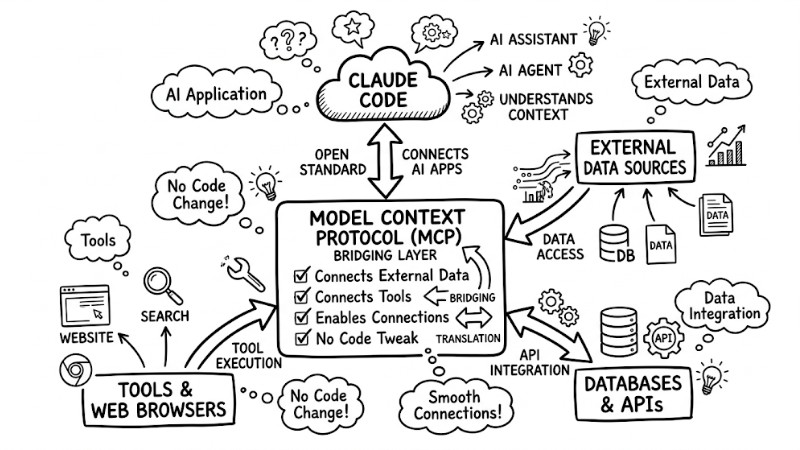
In Claude Code, MCP acts as a bridge between the model and data sources
How does Claude Code MCP work?
Claude Code MCP is how Claude Code employs the Model Context Protocol to link up with databases, file systems, and external services through MCP servers declared in the configuration. When you add an MCP server, Claude Code automatically detects the tools that server provides and can invoke them directly during a session to query data, manipulate files, or call APIs without needing to write manual integration code.
Setting up MCP servers in Claude Code
You can set up MCP servers in two ways, corresponding to two different levels of technical familiarity:
Method 1: Setup via the CLI wizard
This method is suitable when you want to quickly connect an MCP server without needing to immediately understand the config file structure.
Step 1: Open a terminal or command prompt on your machine and navigate to the project directory you are using with Claude Code.
Step 2: Type the command: claude mcp add. This command launches an interactive wizard in the terminal.
Step 3: Select an available MCP server from the suggested list or paste a server installation command (e.g., npx -y @modelcontextprotocol/server-postgresql).
Step 4: The wizard will ask for necessary information step-by-step, such as:
- API keys or access tokens.
- Database addresses or connection URLs.
- A server name or label for identification within Claude Code.
Step 5: Upon completing the steps, the CLI updates the configuration, helping Claude Code recognize and display the new MCP server in the tool list. You can open Claude Code and check under Tools or MCP to verify the server connected successfully.
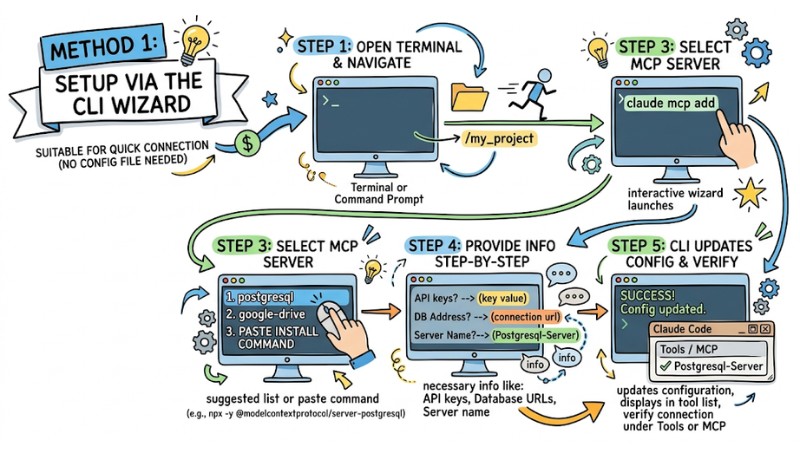
MCP Server Setup Process via CLI Wizard
Method 2: Manual configuration via a config file
This method fits when you need granular control, are deploying across multiple machines, or want to commit the configuration to Git to share with the whole team.
Step 1: Locate the config file: Claude Code typically uses a JSON config file in the user directory, for example, ~/.claude.json, or an equivalent file specified by Claude's documentation.
Step 2: Open the file with an editor: Use VS Code, Claude Code, or any editor to open this file. The content will be in JSON format, comprising a list of MCP servers and connection parameters.
Step 3: Add a new MCP server configuration: Add a new entry describing the server, including key parts like:
- The display name for the server.
- The command to launch the server or the path to the binary.
- Necessary environment variables like an API key or URL.
Step 4: Save the file and restart Claude Code: After editing, save the config file and restart Claude Code so the system loads the new setup. The newly added MCP server will appear in the list of servers Claude can utilize.
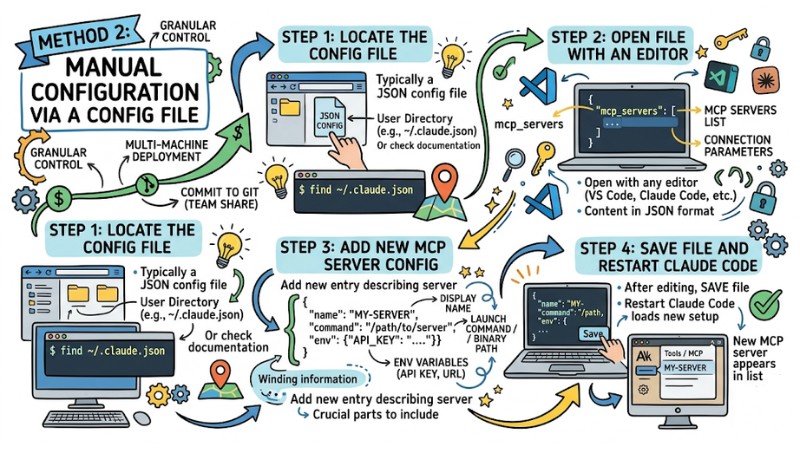
MCP Server Setup Process via CLI Wizard a config file
Connection Types and MCP Configuration Scope
An MCP server can communicate with Claude Code via two main mechanisms: stdio (local process) and HTTP (remote service or container). When using the claude mcp add command, you can select the appropriate connection type, where stdio is typically used with npx or node commands, while HTTP is suited for services running via a fixed URL.
Claude Code supports multiple MCP configuration scopes, including user config files like ~/.claude.json and project-specific config files like .mcp.json placed within the project directory. When multiple configs share the same server name, the project-level config overrides the global user config, allowing you to share standard setups within a team without impacting personal environments.
The .claude.json Config File Structure and Syntax
The .claude.json file stores MCP server configurations as a JSON object, where each server is declared with a run command, an argument list, and required environment variables. When using npx, the system will fetch and run the latest version of the MCP server package without needing a permanent installation in the project.
{
  "mcpServers": {
    "my-postgres-server": {
      "type": "stdio",
      "command": "npx",
      "args": ["-y", "@modelcontextprotocol/server-postgres", "postgres://user:pass@localhost:5432/db"],
      "env": {
        "DATABASE_URL": "postgres://user:pass@localhost:5432/db"
      }
    }
  }
}
- command: The command used to launch the server, usually
npxornodedepending on how the MCP server is distributed. - args: The list of arguments passed to the command, including the MCP server package name and connection strings or necessary parameters.
- env: Where environment variables like database URLs or API keys are declared; should be used for sensitive information instead of hardcoding them directly into
args.
Security: Never push a .claude.json containing sensitive information to a public Git repository. Add this file or the .claude/ directory to .gitignore and prioritize managing API keys via environment variables or a secure secret management solution.
Managing and Checking MCP Server Status
To verify if your servers have successfully connected, follow this workflow:
Use the /mcp command: Type this command right in your Claude Code session to view the list of running servers and available tools.
Troubleshooting:
- Double-check the script file path or the
npxconfiguration within the.claude.jsonfile. - Ensure your environment variables (
env) have been granted the necessary access permissions. - Review terminal logs to see exactly where the server is crashing.
Reload: After editing the config file, restart Claude Code for the changes to take effect.
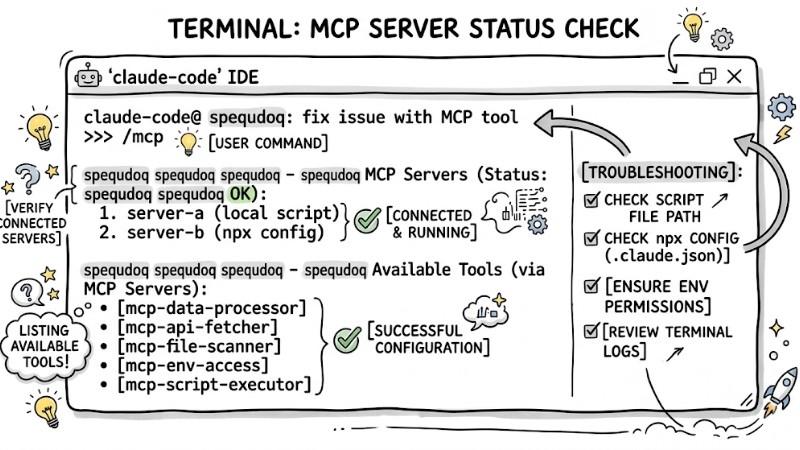
Use the /mcp command to list available tools after a successful configuration
Practical Applications: Popular MCP Servers
Below are some frequently used MCP servers in development projects with Claude Code and MCP-supported clients. Each server expands the model's capabilities in a specific direction, like browser automation, database querying, or source code manipulation.
- Playwright MCP: Allows the model to control a browser, navigate pages, interact with elements, perform UI testing, and capture screenshots for automated web tasks.
- Postgres MCP: Enables direct connections to a PostgreSQL database, schema exploration, and safe SQL query execution from within the Claude workspace.
- Filesystem MCP: Provides read and write capabilities for files in permitted directories, helping the model view source code files, create new files, or update documents within the allowed configuration scope.
- GitHub MCP: Integrates with GitHub to access repositories, list and update issues, read or create pull requests, and perform various remote code management operations via the GitHub API.
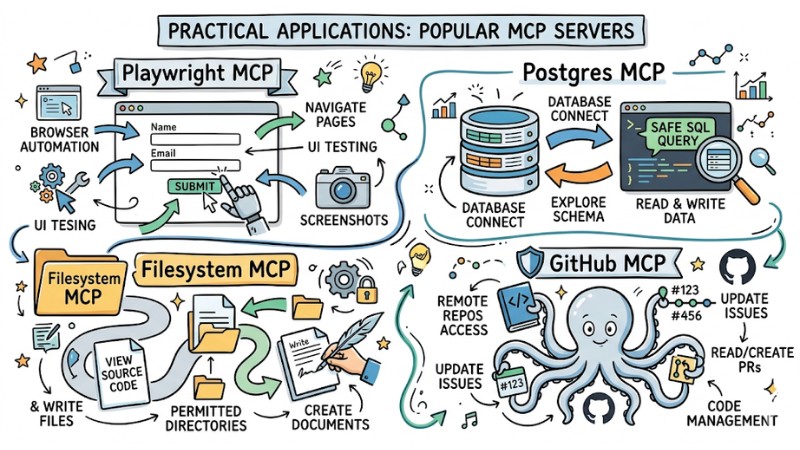
Popular MCP servers used in development projects with Claude Code
Frequently Asked Questions
Does the MCP Server run in the background?
An MCP server only runs when Claude Code or the current session calls its corresponding tool, after which it can halt when no longer required to save resources.
Can I configure MCP on a per-project basis?
You can configure it per project using a file like .claude.json within your project directory, and Claude Code will prioritize the project-scoped configuration over the global user config when server names clash.
Is my data being sent externally?
With locally running MCP servers like Postgres or Filesystem, data is processed within your machine's environment. For servers connecting to external services like GitHub or third-party APIs, data will be transmitted via the MCP protocol to that service for processing within the permission scope you granted.
Why doesn't the command I'm using recognize the MCP?
You need to double-check your configuration and server status using the /mcp or claude mcp list commands, ensuring the server name is correct, the JSON file has no syntax errors, and the necessary environment variables are set.
Read more:
- Operating an AI Agent Teams: Risk Management for the Digital Workforce
- Tasks for Coding Agents: How to Assign Work Effectively so AI Codes Accurately
- Optimizing Coding Agent Codebases: 7 Best Practices for Developers
When properly set up, Claude Code MCP transforms your code editing environment into an orchestration hub capable of querying data, calling APIs, and manipulating your codebase via secure MCP servers. Understanding how to configure it, prioritizing project scopes, and utilizing check commands helps you run Claude Code MCP stably in your daily software development workflow.