Configuring OpenClaw Channels: Integration and Management Guide

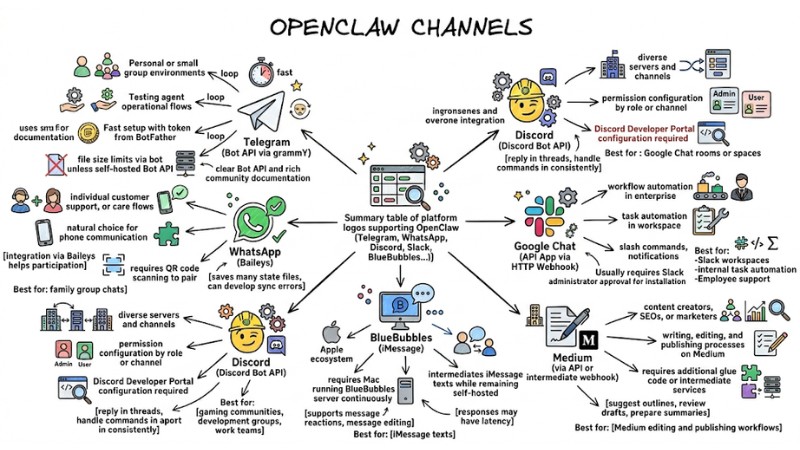
Configuring OpenClaw Channels is the method of connecting AI Agents to messaging platforms and external applications through a Gateway and CLI command system. This article focuses on guiding you through choosing the right channel, setting up channels, configuring message routing, hardening the Gateway, and troubleshooting common connection errors in OpenClaw.
Key Takeaways
- OpenClaw Channels Concept: Understand the centralized communication platform that connects AI Agents with users across diverse messaging apps, creating smooth and synchronized two-way interaction flows.
- Power of CLI: Identify the superior advantages of system administration via a command-line interface, enabling fast operations, automated configuration, and easy scalability for multi-account models.
- Platform Evaluation: Grasp the pros, cons, and suitability of 7 popular communication channels, helping you make optimal choices for each use case.
- Configuration Skills: Pocket essential commands to master adding/removing, logging in, and checking the operational status of communication channels in practice.
- Routing Mechanism: Understand the principles of accurate message flow from communication channels through the Gateway to the correct responsible AI Agent, maintaining system order.
- Security Principles: Deepen your understanding of strategies for establishing secure Gateway boundaries, effectively preventing remote hijacking risks.
- Troubleshooting Skills: Master methods for diagnosing and fixing classic connection errors, maintaining system stability and high availability.
- FAQ: Get answers to common issues regarding account limits, the risk of number banning on WhatsApp, and how to interpret technical error messages.
What are OpenClaw Channels?
OpenClaw Channels are communication channels that allow AI Agents within OpenClaw to connect and exchange two-way information with users through external messaging platforms and applications such as Telegram, Discord, Slack, or WhatsApp. Every Channel is connected centrally through the OpenClaw Gateway, which acts as the sole orchestration layer that receives messages from each platform, standardizes the data, forwards it to the agent or model provider (such as Anthropic Claude) for processing, and sends the response back to the original channel.
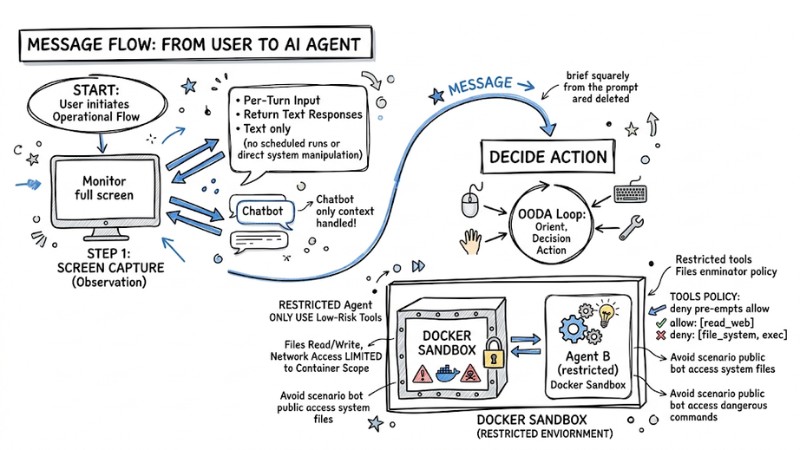
OpenClaw Channels are communication channels that allow AI agents to connect and exchange information bidirectionally with users
Advantages of Managing OpenClaw via CLI
Managing OpenClaw using the CLI allows for centralized configuration control, ease of automation, and is suitable for environments with multiple channels and agents, such as:
- Fast deployment by command: Add or remove channels, bots, or agents with just a few CLI commands, eliminating the need for manual operations through a graphical interface.
- Support for multi-account and multi-agent: Easily configure multiple accounts for the same platform (e.g., multiple Telegram bots) and map them to different agents within a single gateway.
- Configuration and backup via files: Use the CLI combined with JSON5 or YAML files to automate backups, version control, and migrate configurations between servers.
- Agent administration and monitoring via command line: Monitor real-time logs, check gateway status, cron, channels, and force updates or immediate task restarts using specialized commands.
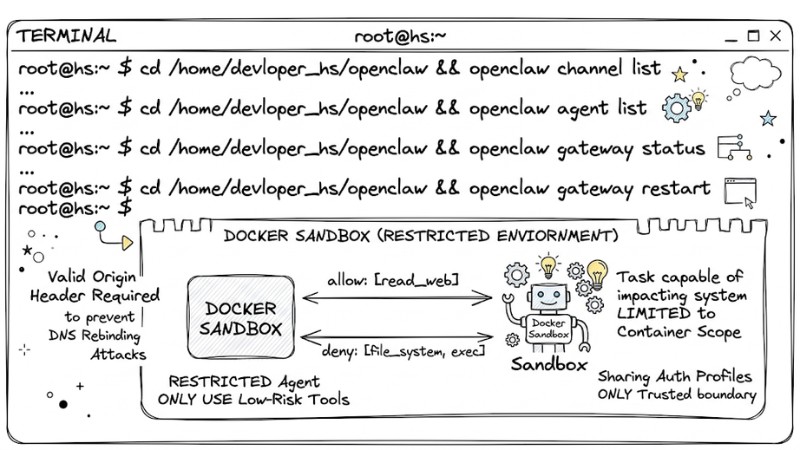
Managing OpenClaw via CLI allows for centralized configuration control and easy automation
Top 7 Popular OpenClaw Channels Today
Below is an overview and practical evaluation of 7 commonly used OpenClaw integration channels, helping you choose the platform that fits your communication and deployment needs.
1. Telegram (Bot API via grammY)
Telegram is the most popular channel when starting with OpenClaw thanks to its clear Bot API and rich community documentation. This channel is suitable for quickly testing agent behavior and operating basic chat flows in personal or small group environments.
- Pros: Fast setup with a token from BotFather, supports individual and group messages, suitable for testing agent operational flows.
- Cons: Dependent on Telegram infrastructure, file size limits via bot unless using a self-hosted Bot API server.
- Best For: Beginners installing and testing OpenClaw operations via a simple chat channel.
2. WhatsApp (Baileys)
WhatsApp is a natural choice for users needing to interact with OpenClaw on their daily phone communication channel. Integration via Baileys helps the agent participate in individual or group conversations with an experience nearly identical to using standard WhatsApp.
- Pros: Globally popular, convenient for phone communication, good support for individual and group messages.
- Cons: Requires QR code scanning to pair devices, saves many state files on disk, can develop synchronization errors if not managed correctly.
- Best For: Family group chats, individual customer support, or care flows via a primary WhatsApp number.
3. Discord (Discord Bot API)
Discord is the right channel for communities and technical teams using servers, channels, and hierarchical permissions to organize communication. When linked with OpenClaw, the agent can join private channels, reply in threads, or handle commands within a community consistently.
- Pros: Supports diverse servers and channels, strong API for bots, easy permission configuration by channel or role.
- Cons: Requires setting permissions and Intents in the Discord Developer Portal, requiring the configurator to understand the bot's access scope.
- Best For: Gaming communities, development groups, or work teams using Discord as their main platform.
4. Slack (Bolt SDK)
Slack is the preferred channel for businesses and workgroups using Slack workspaces for internal communication. Connecting OpenClaw to Slack turns the agent into an in-channel assistant, supporting task automation and sending notifications directly within the workflow.
- Pros: Deep integration with the workspace, supports internal apps, slash commands, and workflow automation in enterprise environments.
- Cons: Usually requires Slack administrator approval for app installation permissions, and security policies may limit the integration scope.
- Best For: Internal task automation, departmental virtual assistants, or direct employee support in Slack channels.
5. BlueBubbles (iMessage)
BlueBubbles provides an intermediate layer for OpenClaw to send and receive messages via iMessage using a server running on macOS. This integration allows the agent to operate within the Apple ecosystem while maintaining a self-hosted model and data control.
- Pros: Supports messaging via iMessage, including features like reactions and message editing, fitting the Apple ecosystem.
- Cons: Requires a Mac running BlueBubbles server continuously to forward messages, increasing infrastructure operational requirements.
- Best For: Users within the Apple ecosystem wanting the agent to send and receive iMessage texts while remaining self-hosted.
6. Google Chat (API App via HTTP Webhook)
Google Chat is suitable for organizations using Google Workspace wanting to embed OpenClaw into existing chat rooms or spaces. Integration via webhooks and the Chat API helps the agent send notifications, reply to requests, and join exchange flows within the Google environment.
- Pros: Connects via HTTP webhook or Chat API, easy to attach to existing Google Workspace processes.
- Cons: Responses may have latency due to the webhook mechanism, and app configuration and permissions in the Admin Console must follow the correct procedure.
- Best For: Businesses using Google Workspace needing agent support for exchanges and notifications in Google Chat rooms or spaces.
7. Medium (via API or intermediate webhook)
Medium is not a traditional chat channel but can be integrated indirectly with OpenClaw through APIs, RSS, or intermediate webhooks to process content. This approach allows using OpenClaw to support writing, editing, and publishing processes on Medium.
- Pros: Supports automating parts of the content process such as suggesting outlines, reviewing drafts, or preparing summaries for posting.
- Cons: No official integrated channel like Telegram or Slack; requires building an additional glue code layer or using intermediate services.
- Best For: Content creators, SEOs, or marketers wanting to bring OpenClaw into Medium editing and publishing workflows.
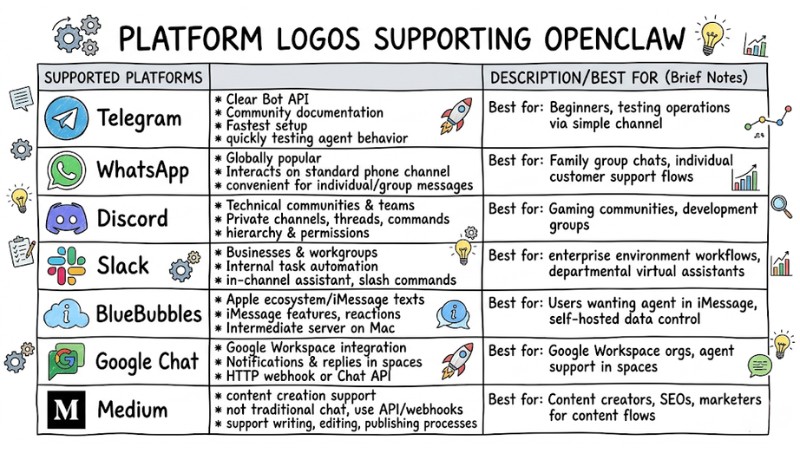
7 Popular OpenClaw Channels on the OpenClaw Platform
Guide to Configuring OpenClaw Channels via CLI Commands
Adding and Removing Channel Accounts (Add / Remove)
You can add channel accounts by passing flags directly in the command or omitting flags to use the interactive wizard.
Add a Telegram bot with an Authentication token:
openclaw channels add --channel telegram --token
Add a Nostr account with a private key:
openclaw channels add --channel nostr --private-key "$NOSTR_PRIVATE_KEY"
Completely remove a channel:
openclaw channels remove --channel telegram --delete
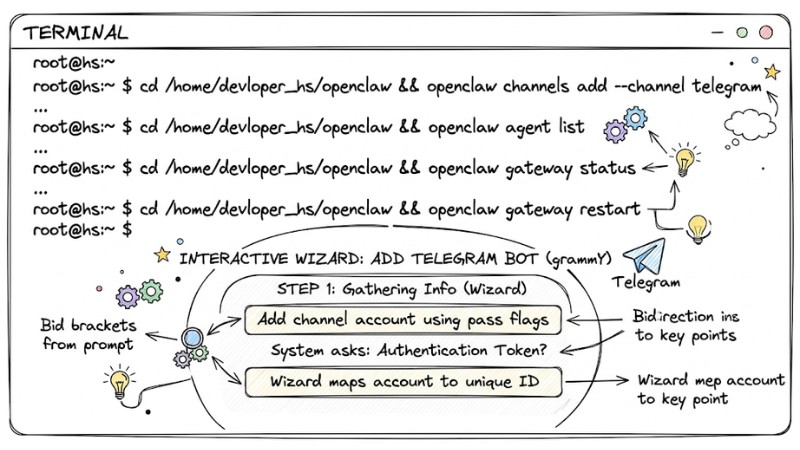
Terminal runs interactive wizard to add Telegram bot
Logging In and Out (Login / Logout)
Some platforms like WhatsApp require session-based authentication from a device; the login command initializes the session pairing process.
Log in or out of a WhatsApp channel:
openclaw channels login --channel whatsapp
openclaw channels logout --channel whatsapp
Practical experience: WhatsApp's QR-based session pairing has a very short timeout period (usually under 60 seconds). Have your phone ready at the scan screen before typing the login command to avoid session expiration errors.
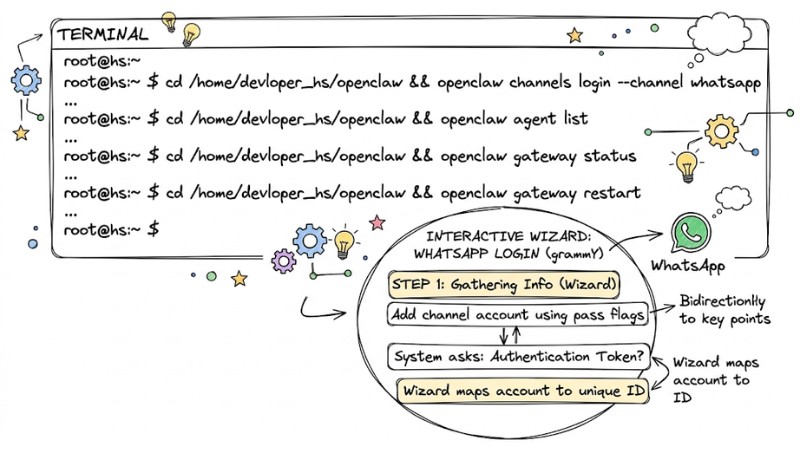
Terminal hiển thị mã để quét WhatsApp
Checking Status and Resolving Names (Status & Resolve)
OpenClaw provides commands to check the gateway status and the list of active channels, as well as resolving channel or user names to internal IDs.
View gateway and channel status:
openclaw channels status
Resolve a channel or user name to a static ID:
openclaw channels resolve --channel slack "#general" "@jane"
Capabilities Probe
Each platform has its own API limits; the capabilities command helps check the permissions and supported features of a channel.
openclaw channels capabilities --channel discord --target channel:123
Message Routing and Agent Bindings in OpenClaw
Principles of Message Routing
In OpenClaw, message routing operates via a WebSocket connection between Channels and the Gateway; all messages pass through the Gateway before reaching the agent. When a message reaches the Gateway, the system reads metadata to identify the channel, account, and sender, then matches it against a bindings table to select a single agent responsible for processing.
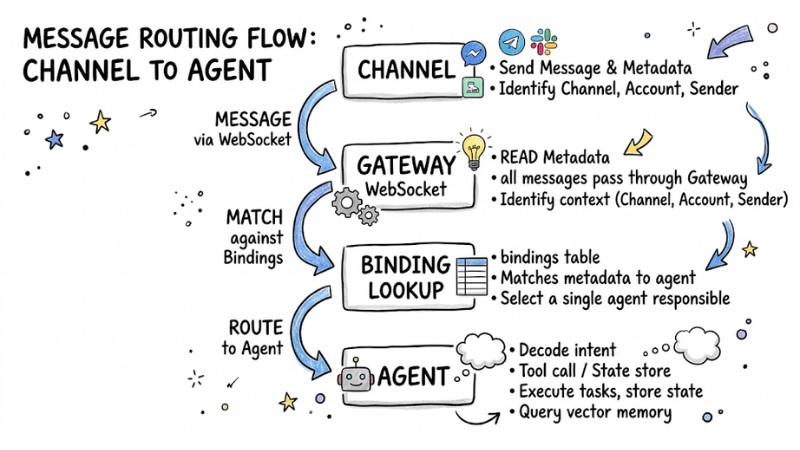
Message Routing Flow from Channel to Agent
How to Establish Bindings (Account Bindings)
Bindings are configurations that assign a specific channel or account to an agent, determining the workspace and session store used for that conversation flow.
- Ephemeral state: Uses sessions stored in short-term memory, suitable for quick lookup bots where context is cleared when the session ends or the Gateway restarts.
- Persistent state: Linked to a workspace and long-term memory system, allowing the agent to remember information and interaction history across multiple days; useful for family or work group chats requiring episodic memory context accumulation.
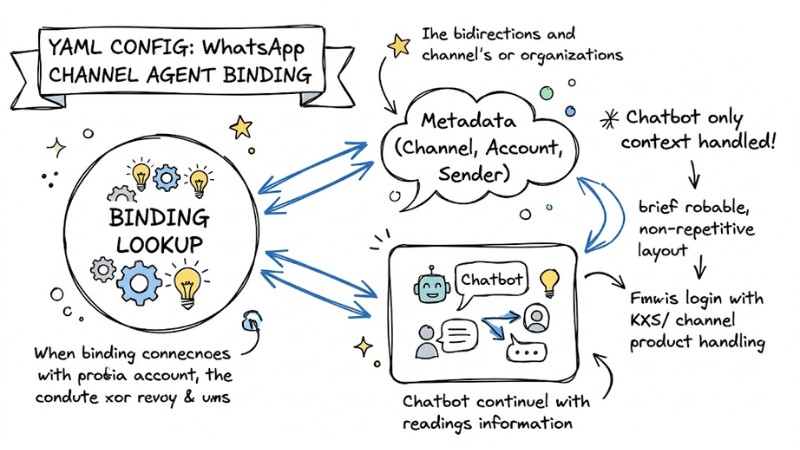
YAML file for configuring Agent ID binding for WhatsApp channels
Gateway Hardening Principles When Configuring OpenClaw
Before allowing OpenClaw to communicate over the network, the Gateway must be configured in a secure mode to reduce remote hijacking risks. Below are three core principles often recommended in practical deployments:
- Close the network with Tailscale Serve: Prioritize binding the Gateway to local mode
127.0.0.1or within a private Tailnet via Tailscale Serve, avoiding direct exposure of the WebSocket port to the Internet via Funnel or similar tunnel services without additional protection layers. - Enable token authentication for the Gateway: Configure gateway.auth.mode as token and set a sufficiently long random token; avoid unauthenticated modes because if the Gateway port is exposed, any user could send commands to control the agent and access machine resources.
- Set an allowlist for channels and users: In group chats with many people, configure
@mentionrequirements or a requireMention policy for the bot to respond, and enable allowlist mode so only designated User IDs are permitted to DM the agent or use channels with agent access.
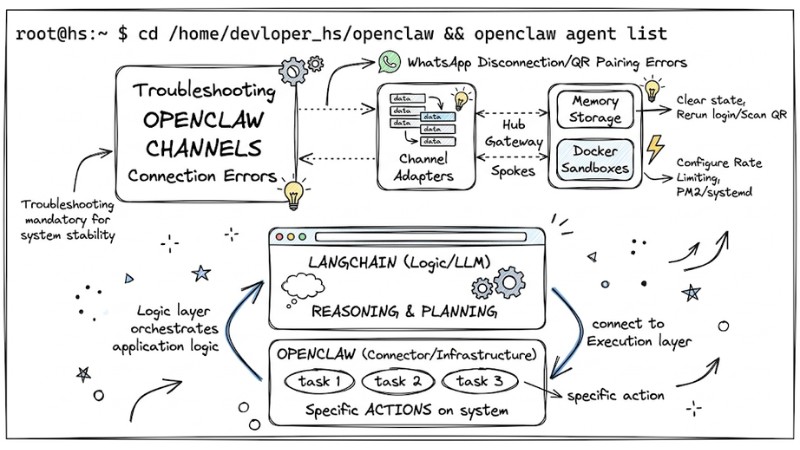
Troubleshooting OpenClaw Channels Connection Errors
In real-world deployments, knowing how to handle OpenClaw Channels connection errors is mandatory to keep the system stable. Below are three common error groups and their respective fixes.
Handling WhatsApp Disconnection / QR Pairing Errors
- Symptoms: WhatsApp bot stops responding, logs report disconnected or request relink, sometimes a reconnect loop appears.
- Causes: The Baileys session state on the server is corrupted, the same session is shared across multiple Gateways, or the phone is disconnected for a long duration.
- Resolution: Run
openclaw channels logout --channel whatsappto clear the current authentication state. Stop the Gateway and delete old WhatsApp directories/credentials according to instructions. Then rerunchannels loginand scan a new QR code.
Diagnosing Permission Errors (HTTP 403 / missing scopes)
- Symptoms: Logs display
HTTP 403 ... user:profile → usage snapshot needs the user:profile scope. - Causes: The app configuration on the platform (e.g., Discord, Slack) has not enabled enough scopes or necessary Intents for the bot.
- Resolution: Run OpenClaw doctor (
openclaw doctor --fix) to detect and fix common misconfigurations. Then re-grant sufficient Read Messages/Message Content permissions on the portal.
Troubleshooting Slow Gateways, Crashes, and API Limits
- Symptoms: Agent responds unusually slowly, logs show 429 errors (rate limit), or the Gateway stops midway.
- Causes: Exceeding model provider API call limits, improper retry configurations, or the Gateway consuming too much RAM on the local machine.
- Resolution: Configure Rate Limiting in the installation file. Use a process manager like PM2, systemd, or a watchdog script to monitor the Gateway, automatically restarting it if the service crashes, and monitor logs to distinguish between API limit errors and system resource issues.
Network security architecture with Tailscale and public internet stream blocking
FAQ
How many multi-account channels can I run simultaneously?
Theoretically, OpenClaw does not limit the number of channels; you can run multiple Telegram, WhatsApp, and Discord bots in parallel as long as the server has enough CPU and RAM and each channel is configured with separate channel IDs and account IDs for accurate Gateway routing.
How do I add WhatsApp to OpenClaw without Meta banning the number?
Use a WhatsApp number that is operating normally with a real chat history, configure delays between agent-sent messages to simulate natural messaging, and avoid scenarios of sending mass messages, advertising, or continuously repeating templates, as these behaviors are easily detected as automated and flagged by the system.
Why does the capabilities command report "Probe: unavailable" on some channels?
This message typically appears when a platform lacks an endpoint allowing OpenClaw to pre-check Read/Write/Media permissions, so the probe command returns no capabilities data. However, if the bot has been issued the correct token and still sends/receives messages successfully, you can ignore this message as it does not cause the bot to stop functioning.
Read more:
- Guide to Integrating OpenClaw MCP for Advanced AI Agent Optimization
- Guide to Installing OpenClaw and Simple Configuration for Beginners
- Detailed Guide to Deploying a Multi-Agent System in OpenClaw
Effective OpenClaw Channels management depends on choosing the right channels for your needs, clear CLI and bindings configuration, and hardening the Gateway in a secure mode before opening it to real-world environments. If you master the configuration steps, hardening principles, and troubleshooting workflows in this article, OpenClaw can become a stable intermediate layer for AI Agents to communicate across multiple channels while maintaining control over performance and security.