Guide to Installing OpenClaw and Simple Configuration for Beginners

OpenClaw is a breakthrough Autonomous AI Agent (autonomous AI assistant) that allows you to automate complex computer tasks instead of just providing text responses like a typical chatbot. Utilizing the OODA Loop (Observe - Orient - Decide - Act) mechanism, this system has the ability to "see" the interface, manipulate the mouse and keyboard, and process data directly on the device according to a Local-first philosophy. In this article, I will guide you through the detailed steps to install OpenClaw and perform the quickest, simplest configuration!
Key Takeaways
- Preparation Before Installing OpenClaw: Master the requirements for the operating system, environment (Node.js, Docker), and necessary accounts for a smooth installation process.
- Guide to Installing OpenClaw: Execute the correct installation commands for specific environments (Windows/WSL2 or Ubuntu/VPS) to successfully set up the platform.
- Configuration and Onboarding: Know how to connect the system to AI models through control channels (Telegram/WhatsApp) and secure OAuth authentication.
- Safety and System Optimization: Understand how to protect the system using Sandbox mode, secure connection ports, and manage API quotas for long-term operation.
- Troubleshooting Common Errors: Know how to identify and quickly fix common issues regarding Gateway ports, authentication (Auth) errors, or container runtime errors.
- FAQ: Clarify issues regarding safety, platform choices, operating costs, and how to update the latest versions for the AI Agent.
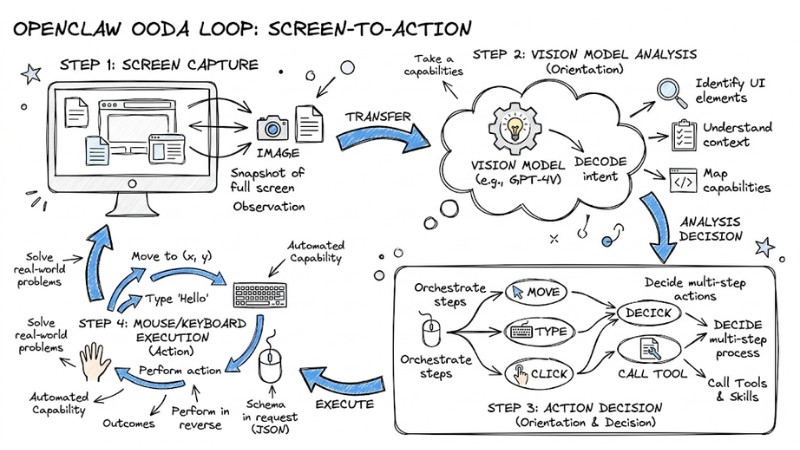
OpenClaw's OODA Loop mechanism
Preparation Before Installing OpenClaw
To ensure OpenClaw operates smoothly, your computer needs to meet the following technical requirements:
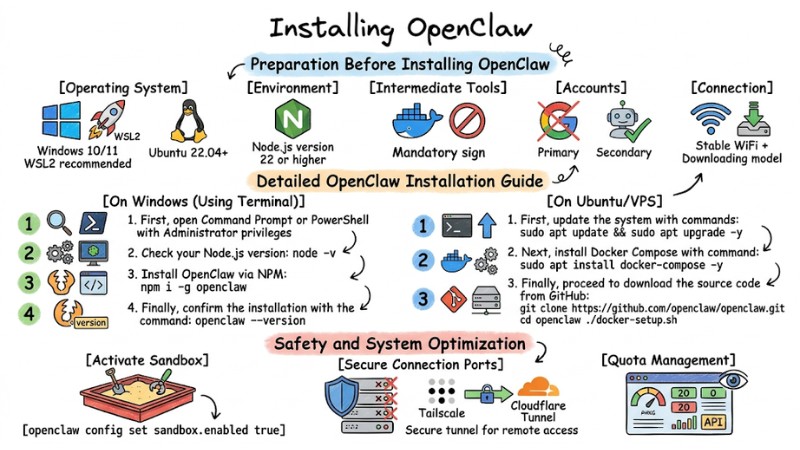
- Operating System: Windows 10/11 (WSL2 recommended) or Ubuntu 22.04+.
- Environment: Node.js (version 22 or higher).
- Intermediate Tools: Docker Desktop (mandatory for running isolated containers).
- Accounts: A secondary Google account (to avoid risks to your primary account from automated tasks).
- Connection: Stable internet to download AI models.
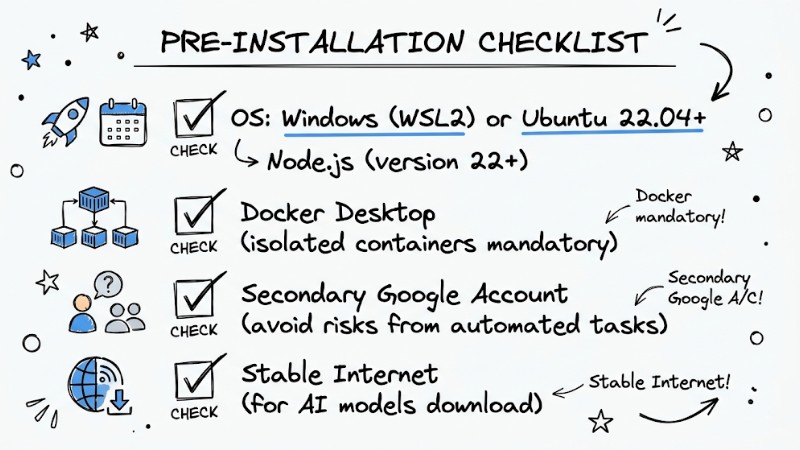
Checklist to prepare before installing OpenClaw
Detailed OpenClaw Installation Guide
On Windows (Using Terminal)
- Step 1: First, open Command Prompt or PowerShell with Administrator privileges.
- Step 2: Check your Node.js version:
node -v(if not installed, download at nodejs.org). - Step 3: Install OpenClaw via NPM (Node Package Manager) using the following command:
npm i -g openclaw
- Step 4: Finally, confirm the installation with the command:
openclaw --version
On Ubuntu/VPS
- Step 1: First, update the system with the following commands:
sudo apt update && sudo apt upgrade -y
- Step 2: Next, install Docker Compose with the following command:
sudo apt install docker-compose -y
- Step 3: Finally, proceed to download the source code from GitHub:
git clone https://github.com/openclaw/openclaw.git
cd openclaw
./docker-setup.sh
Note: If you encounter a "Permission Denied" error, use sudo chmod +x to grant execution permissions to the installation file.
OpenClaw Configuration and Onboarding
After installation, you need to perform the Onboarding step to connect the system with AI models following these steps:
- Run the initialization command: Type
openclaw onboardin the Terminal. - Select a control channel: Telegram (use BotFather to create a token) or WhatsApp (scan QR code).
- OAuth Authentication: The system will open a browser; log in to your Google account and click Grant to provide access permissions.
Pro-tip: Use Incognito mode when performing OAuth authentication to avoid cookie conflicts with other Google accounts on your browser.
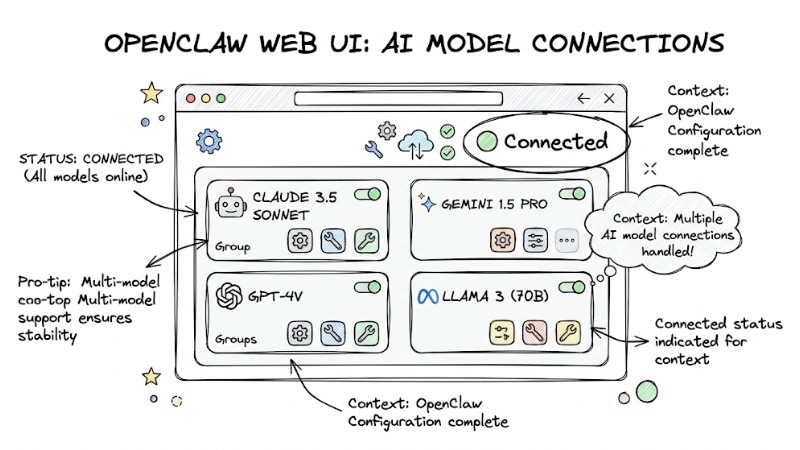
OpenClaw Configuration and Onboarding
Safety and System Optimization
OpenClaw has permission to intervene in the system, so please adhere to the following security rules:
- Activate Sandbox: Always run the AI in an isolated environment to avoid conflicts with system files using the following command:
openclaw config set sandbox.enabled true
- Secure Connection Ports: Do not expose port
18789to the public internet. If remote access is needed, use Tailscale or Cloudflare Tunnel to create a secure tunnel. - Quota Management: Monitor the API status in the Web UI to avoid consuming too much of the AI model's quota.
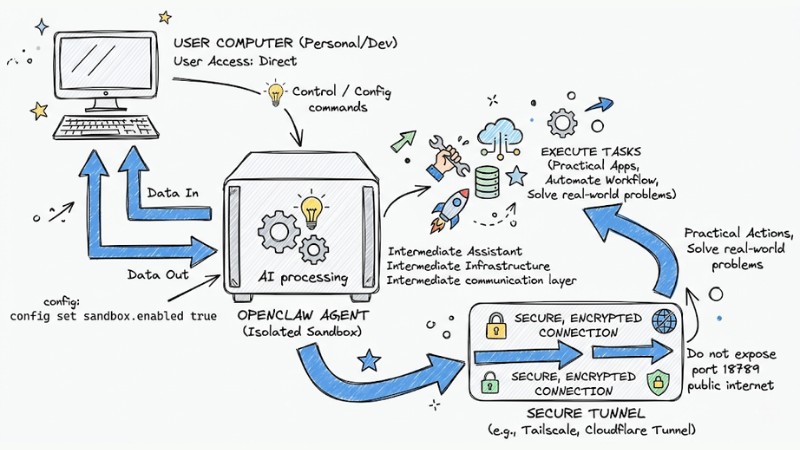
Safety and system optimization considerations
Troubleshooting Common Errors
| Common Error | Cause | Resolution |
|---|---|---|
| Gateway won't start | Conflict on port 18789. | Check again using openclaw gateway --verbose |
| Auth Failed / Token invalid | Token expired or incorrect. | Rerun the command openclaw onboard |
| Quota exceeded | Google/Claude API limits. | Switch to a lighter model (Gemini Flash). |
| Container runtime error | Docker not installed or error. | Reinstall Docker Desktop. |
FAQ for Installing OpenClaw
Is installing OpenClaw complicated?
The OpenClaw installation process typically requires tools like Node.js and Docker. While there are technical steps, with detailed instructions and careful preparation, you can successfully set it up even on a personal computer.
Is OpenClaw safe to use?
OpenClaw is designed with a local-first model, meaning sensitive operations are processed locally. However, due to its system access capabilities, using a secondary account and enabling sandbox mode is recommended to enhance security.
Which Large Language Models can I use with OpenClaw?
OpenClaw supports integration with various Large Language Models through service providers. You can connect with models like Claude, Gemini, or other LLMs available via API or OAuth protocols.
How do I fix the "Auth failed" error during OpenClaw installation?
The "Auth failed" error is usually related to the OAuth Token. Try running the onboarding command again, ensure you paste the correct Token into the wizard, and use an incognito tab when authenticating your Google account to avoid conflicts.
Should I use OpenClaw on Windows or Ubuntu?
Both Windows (with WSL2) and Ubuntu are supported platforms for OpenClaw. Linux (Ubuntu) often has an advantage regarding the command-line environment and container management, but Windows also provides a similar installation experience via CMD and Docker Desktop.
Is OpenClaw free?
Yes, this is a non-profit open-source project. You only need to pay fees (if any) to the AI model providers (such as Google or OpenAI) based on your usage levels.
Can OpenClaw replace humans entirely?
No. OpenClaw acts as an "AI colleague" supporting task execution; users still need to supervise critical actions.
How do I update to a new OpenClaw version?
Simply run the command npm install -g openclaw@latest to receive the latest features and security patches from the community.
Is there a risk of personal data leakage when using OpenClaw?
With its Local-first architecture, control data is stored locally. However, be cautious when providing sensitive files for the AI to execute.
Read more:
- Guide to Integrating OpenClaw MCP for Advanced AI Agent Optimization
- OpenClaw Architecture: OS Solution for AI Agents
- OpenClaw Use Case: Effective Work Automation Methods
OpenClaw is the gateway to the era of personalized automation. Start testing your first simple tasks today and share the results with the community on GitHub to help improve the system. During usage, you can gradually expand to more complex scenarios, integrating more AI models and automation tools to turn your computer into a 24/7 "digital assistant."