What is Claude Code? Installation Guide and 15 Practical Use Cases

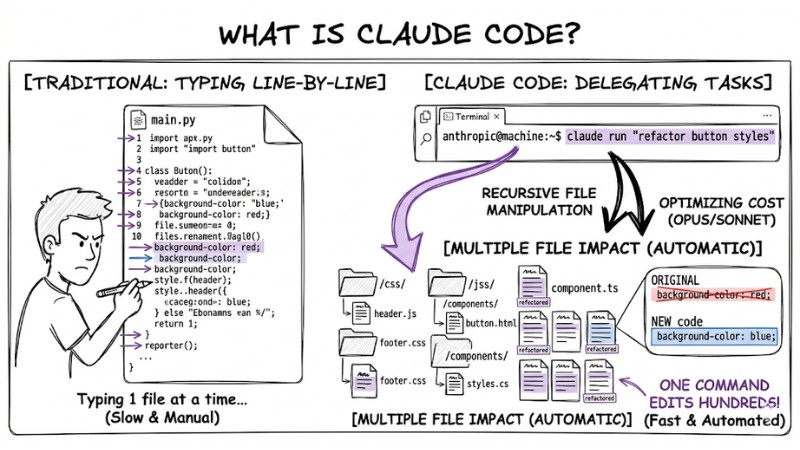
Claude Code is a Terminal-based AI assistant that automates computer tasks and coding projects by interacting directly with the file system, eliminating the need for web interfaces or manual copy/pasting. Whether you're a developer or an office worker, Claude Code provides a direct execution solution that 10x your daily workflow speed.
Key Takeaways
- Concept: Understand that Claude Code is an advanced CLI tool that lets you communicate in natural language so the AI can directly manipulate the file system, cutting out clunky web interfaces.
- Installation Guide: Master the simple installation steps for macOS and Windows, along with how to seamlessly integrate it into IDE environments like VS Code or Cursor to optimize your workflow.
- Usage Tips: Learn how to master Claude Code using shortcuts, slash commands, and configuring the CLAUDE.md file so the AI retains project context without burning through Tokens.
- Practical Applications: Leverage 15+ automation tasks, from deep programming (refactoring, debugging, testing) to daily office chores (renaming files, processing documents), helping you speed up your work by 10 times.
- Cost Management: Grasp the token-based pricing mechanism and budget optimization tactics to ensure efficient and cost-effective AI usage.
- FAQ Answers: Get answers to concerns about data safety, the differences between various AI assistants, and how non-technical users can apply them.
What is Claude Code? The Difference Compared to Standard AI Chatbots
Defining Claude Code
Claude Code is a Command Line Interface (CLI) utility developed by Anthropic. Unlike a standard web chatbot, this tool stands out for its smart, automatic model switching: It uses Anthropic Opus to handle complex logic and Sonnet for file reading tasks, optimizing costs.
Completely dropping the flashy graphical user interface (UI) is an intentional design choice. This decision helps the system focus all computing resources purely on command execution speed. When you converse with the AI in natural language, the system translates and runs tasks directly on your machine.
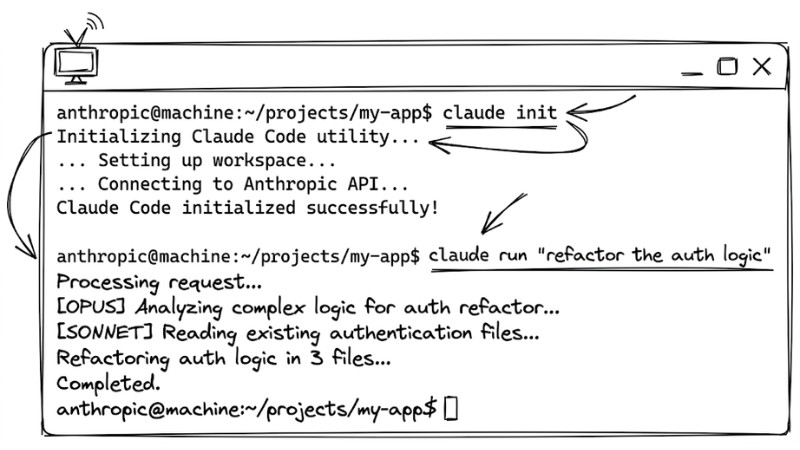
Claude Code is a Command Line Interface utility developed by Anthropic
Deep Integration into the File System
The core difference of Claude Code lies in its ability to recursively manipulate the file system:
- Direct Execution: The AI automatically reads, opens, edits, deletes, or creates files directly on your hard drive.
- Handling Large Projects: Completely resolves the context overload issues seen with ChatGPT or Claude Web when dealing with massive codebases.
Practical Example: When you request "Change all button colors from red to blue", Claude Code automatically scans dozens of CSS files, makes the changes, and saves them.
Detailed Claude Code Installation Guide for Beginners
Installation Steps on macOS
To install it on macOS, you need an internet connection and an Anthropic account for authentication.
- Step 1: Press Cmd + Space, type "Terminal", and hit Enter to open it.
- Step 2: Next, copy and paste the following Bash command into your Terminal, and press Enter:
curl -fsSL https://claude.ai/install.sh | bash
- Step 3: Finally, type the
claudecommand to boot it up. The system will prompt you to log into your account via the browser.
Installation Steps on Windows
On Windows, the installation process is done via PowerShell.
- Step 1: Press the Windows key, type "PowerShell", right-click it, and select "Run as Administrator".
- Step 2: If you encounter an Execution Policy error, run the
Set-ExecutionPolicy RemoteSignedcommand first. - Step 3: Next, paste the following installation command into PowerShell and hit Enter:
irm https://claude.ai/install.ps1 | iex
- Step 4: Afterwards, type
claudeto start the account authentication flow.
Integrating with VS Code and IDE Ecosystems (Cursor)
For a smooth experience, your machine must have Node.js version 18 or higher installed. I recommend using the integrated Terminal right inside Visual Studio Code (VS Code) or Cursor.
- Step 1: Open your IDE, press Ctrl +
(backtick) to open the integrated Terminal. - Step 2: Then, you type
the claudecommand directly in your project directory.
This approach helps you optimize your local development environment. You can prompt the AI in one half of the screen and watch the code change in real-time on the other half.
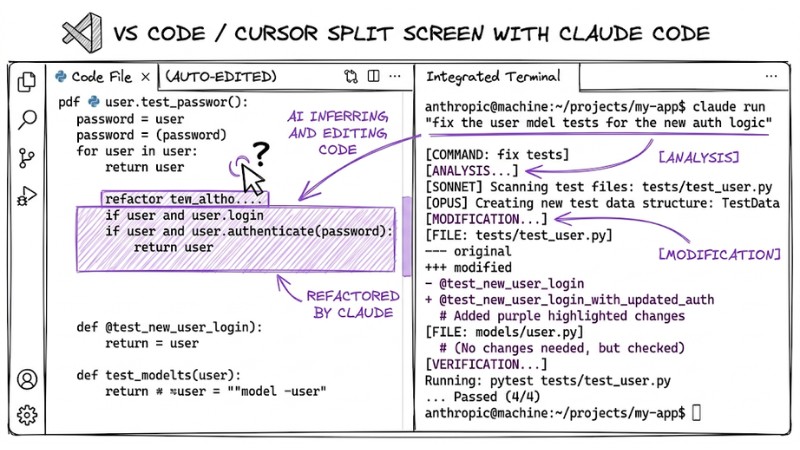
Integration with VS Code and IDE Ecosystems
Top 7 Best Tips for Using Claude Code via Terminal
Bypass continuous permission prompts
By default, Claude Code constantly asks for permission before running shell commands. This is highly secure but wastes time. To save typing "y", I usually boot it up with the --dangerously-skip-permissions flag:
claude --dangerously-skip-permissions
Manage context and optimize Tokens
Don't let your entire chat history drain your Tokens. Use slash commands, particularly the /clear command, to wipe the chat history every time you switch to a new task to prevent hallucination and minimize costs.
Automate Pull Request reviews
Integrate the GitHub Integration so the AI can automatically review your source code. Then run the /install-github-app command. When there's a new Pull Request, Claude Code will automatically read the code, detect bugs, or spot security flaws (like SQL Injection) before you merge it into the main branch.
Set up persistent project memory with CLAUDE.md
To establish persistent project memory, create a CLAUDE.md file in the root directory of your project. This file acts as a project-level System Prompt, where you document coding standards and mandatory libraries. Every time it boots, Claude will automatically read this file without needing to rescan the entire codebase.
Use the # symbol to quick-call Entities
Instead of typing out long file paths, use the # symbol to quickly summon context. For example: type #config.json or #HeaderComponent. Claude Code will automatically grab the correct file and pull it into temporary memory for accurate processing.
Handle request chains
Instead of typing tiny individual commands, write a long prompt structured as a workflow. You can request: "1. Update dependencies. 2. Fix UI bugs in file A. 3. Run tests". Claude will automatically parse and sequentially execute these requests.
Fix Terminal display errors
If Shift + Enter isn't working to start a new line, type the /terminal-setup command to reconfigure it. If Claude Code is heading in the wrong direction, don't use Ctrl + C (which exits completely); hit the Esc key to interrupt the current task.
Top 15 Practical Claude Code Use Cases for Work Automation
For Developers
Claude Code transforms the approach to AI-driven software engineering. Below are 7 battle-tested use cases:
- Automated Debugging: Reads error logs directly in the Terminal, traces the failing file, and automatically writes the fix.
- Code Refactoring: Searches for legacy code patterns and replaces them with new syntax across dozens of files simultaneously.
- Automated Testing: Scans logic functions and automatically generates Unit Tests using Jest or PyTest.
- Security Analysis: Hunts for connection strings or tokens accidentally hardcoded into the project.
- Documentation Updates: Reads the code and automatically updates the README.md file.
- CI/CD Pipeline Generation: Automatically generates YAML files for GitHub Actions based on your project's tech stack.
- Git Management: Analyzes project diffs and automatically writes accurate commit messages.
Overall Pros/Cons:
- Pros: Excellent ability to navigate and link files; rarely gets stuck on complex tasks.
- Cons: Depends heavily on prompt quality, so bulk file deletion commands require supervision.
For General Users
With these automation tools, non-coders can use the Terminal effortlessly:
- Bulk File Renaming: Request: "Rename all PDFs in this folder to the Year-Month-Day_Partner_Name format".
- Storage Cleanup: Analyzes the machine, finds duplicate files or junk folders, and deletes them.
- Data Automation: Groups messy info from a Text file into a clean Excel spreadsheet.
- Image Optimization: Requests bulk format conversion from PNG to WebP, reducing file size without losing quality.
- YouTube Video Downloading: Provide a URL and request it to download the video directly to a specific folder.
- Audio Processing: Renames recording files, converts formats, or hooks into APIs to translate transcripts.
- Report Analysis: Reads bulk PDF financial reports and summarizes core metrics into a Word doc.
- Project Brainstorming: Reads internal docs and automatically drafts job descriptions (JDs) or social media posts.
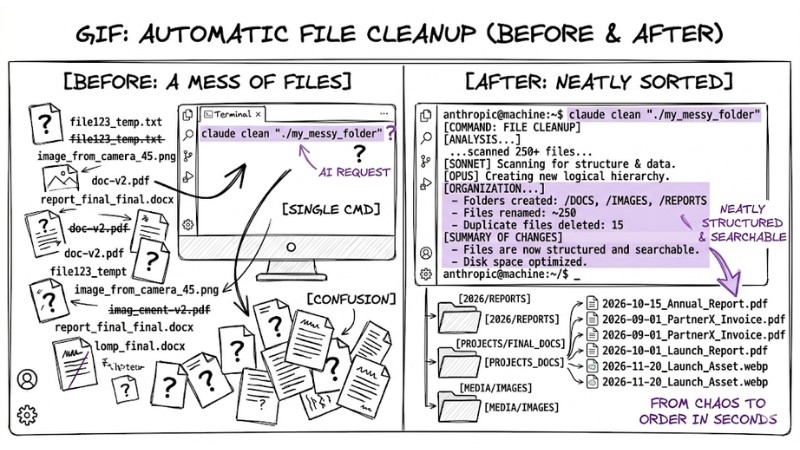
Before and after the AI auto-renames and sorts hundreds of messy files into neat folders with just 1 command
Overall Pros/Cons:
- Pros: Handles manual and repetitive tasks in mere seconds, while allowing full communication in natural language.
- Cons: Requires getting used to the black Terminal screen, which can be an initial psychological hurdle.
How Much Does Claude Code Cost to Use?
Claude Code charges based on a usage-driven Token consumption mechanism:
| Pricing Mechanism | Cost Optimization Strategies |
| Pay-as-you-go: You load credits into your Anthropic account; the token price depends on the model called. | Use limit flags: Set a daily budget. |
| Opus Model: Around $15/1M input tokens. Best for complex logic code. | Use the /clear command: Wipe the chat history to avoid paying for old tokens again. |
| Sonnet Model: Around $3/1M input tokens. | System automatically uses Sonnet for lightweight tasks (file reading, searching) to save money. |
Frequently Asked Questions (FAQ) About Claude Code
Can Claude Code fully replace Cursor IDE?
No. These two tools complement each other. Cursor is incredibly powerful at predicting code as you type. Meanwhile, Claude Code excels at executing multi-file tasks. Therefore, you should use Cursor as your primary Editor and call Claude Code via Terminal when you need to refactor large projects.
Is running Local-first execution safe for my machine's data?
Command execution happens directly on your machine, but the prompt data is still sent through Anthropic's API. Your source code isn't used as training data unless you explicitly grant that permission in your account settings. My advice is to be cautious when using the permission-skip flag on codebases downloaded from untrusted online sources.
Can non-programmers really use the Terminal?
Absolutely. You don't need to learn Shell or Bash commands. Just open the Terminal and type in natural language (e.g., "Find image files larger than 5MB on my D drive"). The AI (LLM) acts as an interpreter, automatically turning your words into executable commands and running them.
How do I prevent Claude Code from dropping Context on large projects?
To keep the AI continuously context-aware, create a CLAUDE.md file containing the project's high-level architecture. When the chat history gets too long, use the /compact command. This prompts the AI to automatically summarize what it's done into a short paragraph, freeing up memory to keep working without forgetting older facts.
How do I install Claude Code on macOS?
To install Claude Code on macOS, open the Terminal and run the curl -fsSL https://claude.ai/install.sh | bash command. You need an Anthropic account for authentication.
How do I install Claude Code on Windows?
On Windows, open PowerShell with Admin privileges and run the irm https://claude.ai/install.ps1 | iex command. Make sure you have the latest version of Node.js installed.
Can Claude Code integrate with VS Code?
Yes, Claude Code can integrate with VS Code via the integrated Terminal. You need Node.js version 18+ installed and can use the /terminal-setup command to optimize it.
How do I bypass Claude Code's continuous permission prompts?
You can use the --dangerously-skip-permissions flag when running Claude Code to skip permission prompts, saving you time during your workflow.
How does Claude Code manage context and optimize Tokens?
Use the /clear command frequently to wipe the chat history and optimize your Token usage. Claude Code also leverages the Opus and Sonnet models to handle different tasks.
How does Claude Code automatically review Pull Requests?
After running the /install-github-app command, Claude Code can auto-review your PRs. You can customize the review prompt by creating a claude-code-review.yml file.
How do I set up persistent project memory for Claude Code?
You can use a CLAUDE.md file in your project to provide long-term context for Claude Code, helping it better understand the project's structure and requirements.
What are the Claude Code use cases for developers?
Claude Code assists with tasks like refactoring massive codebases, fixing complex logic bugs, automating testing, and auto-generating code docs, comprehensively accelerating the software development life cycle (SDLC).
What are the Claude Code use cases for general users?
Claude Code can help automate file organization, bulk renaming, downloading web content, processing images, and many other office tasks, boosting productivity for non-technical users.
Read more:
- What is OpenClaw? Definition and Features of the Next-Gen AI Agent
- What is AI Code Interpreter? Its Importance and How It Works
- What is Tool Calling? How to turn AI into a true action-taking assistant
Claude Code is completely changing how we interact with computers, shifting from manual mouse clicks to natural language automation. Install Claude Code today, test it out on a small local folder, and experience the performance boost for yourself!